Get started trading on TradingView with your
Moomoo SG Universal account.
Follow the steps below to connect your Moomoo SG Universal account to TradingView and learn how to place orders, make deposits and withdrawals, and more.
For more detailed information and tutorials on how to use the various tools available on TradingView, you can also visit TradingView's online help center.
1.Signup and Login:
If you don't have a TradingView account yet:
Go to TradingView's official website and click "Sign up."
If you already have a TradingView account:
Go to TradingView's official website, click "Sign in" and enter your credentials.
2.Connect TradingView to moomoo
To connect your Moomoo SG Universal account:
-
Log in to your TradingView account
-
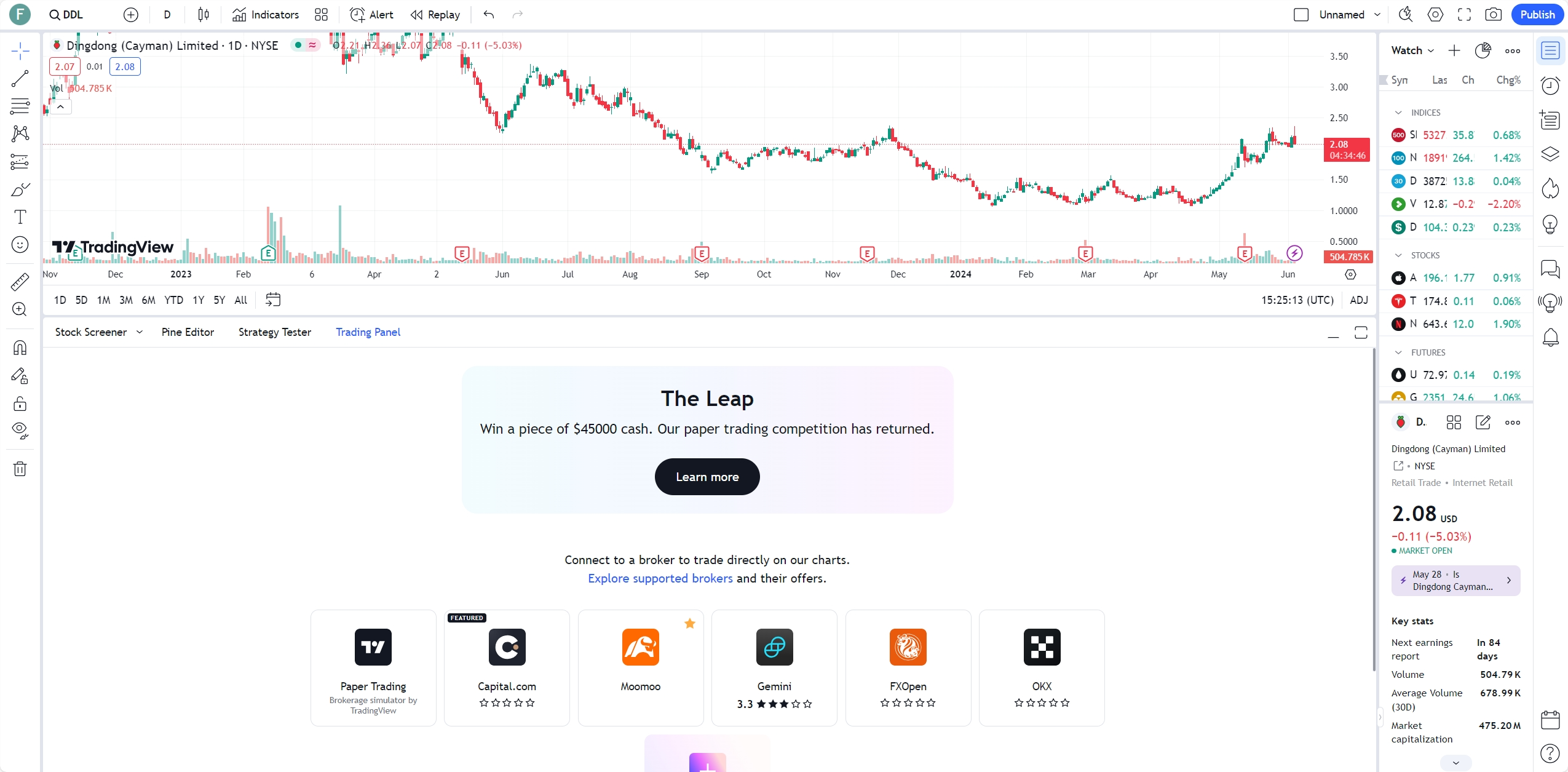
Click Trading panel
-
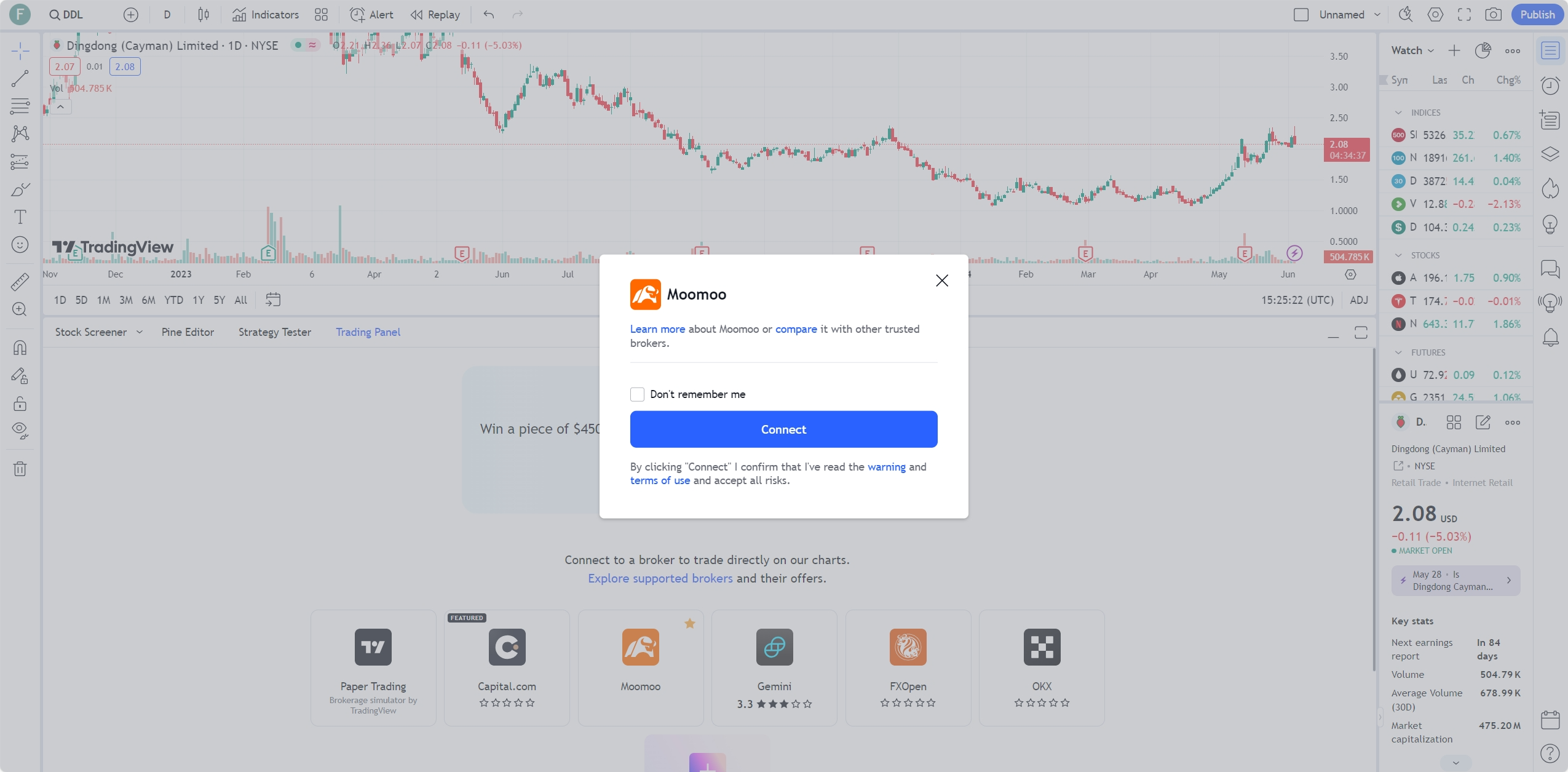
Find Moomoo SG in the list of brokers
-
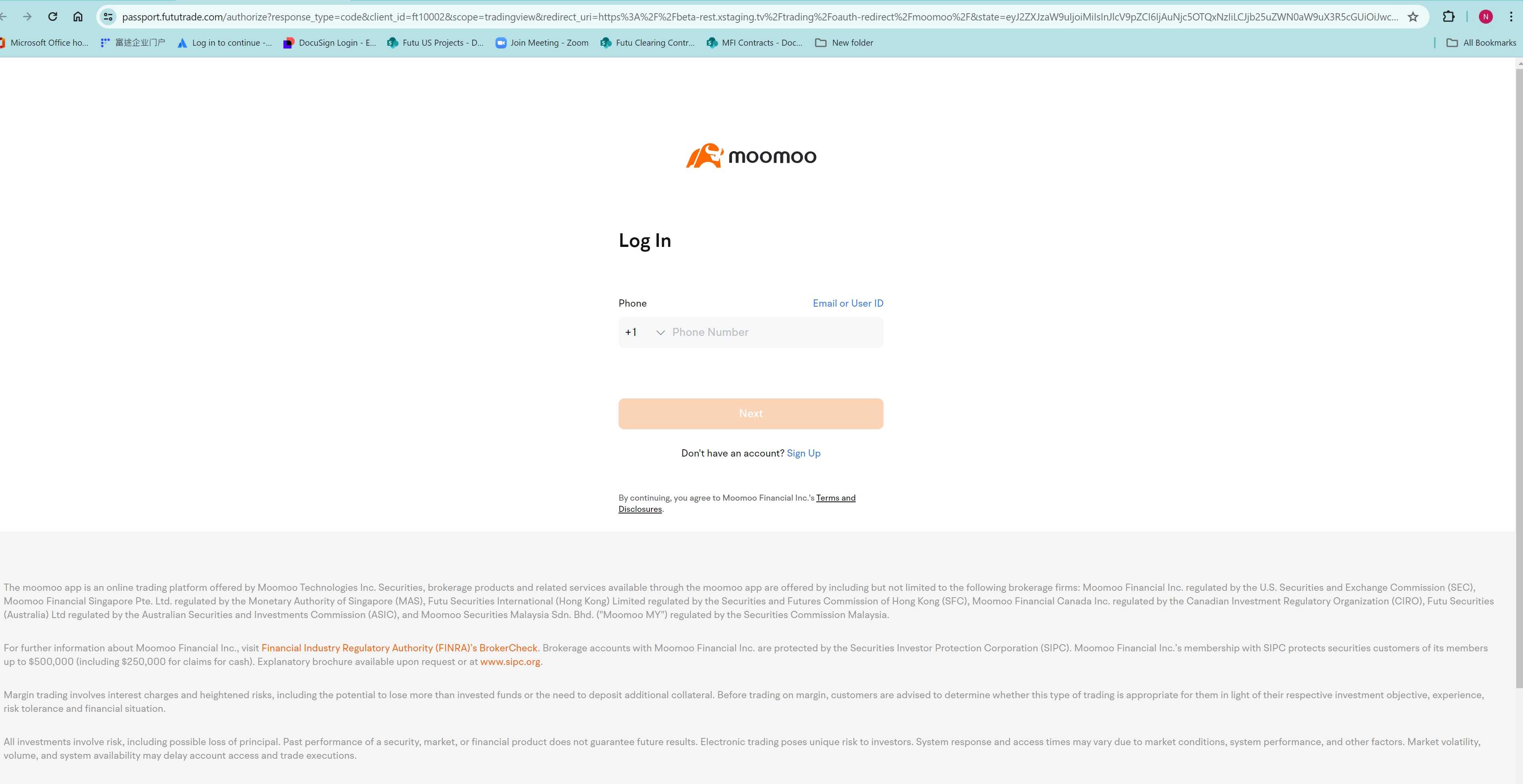
Enter your Moomoo SG Universal account information and tap Connect
Note: For security purposes, TradingView automatically logs you out after a certain period of inactivity. However, you do not need to reconnect TradingView to your Universal account every time you log in. Simply log in once, and you will remain connected to your Universal account.
3.Overview of TradingView features
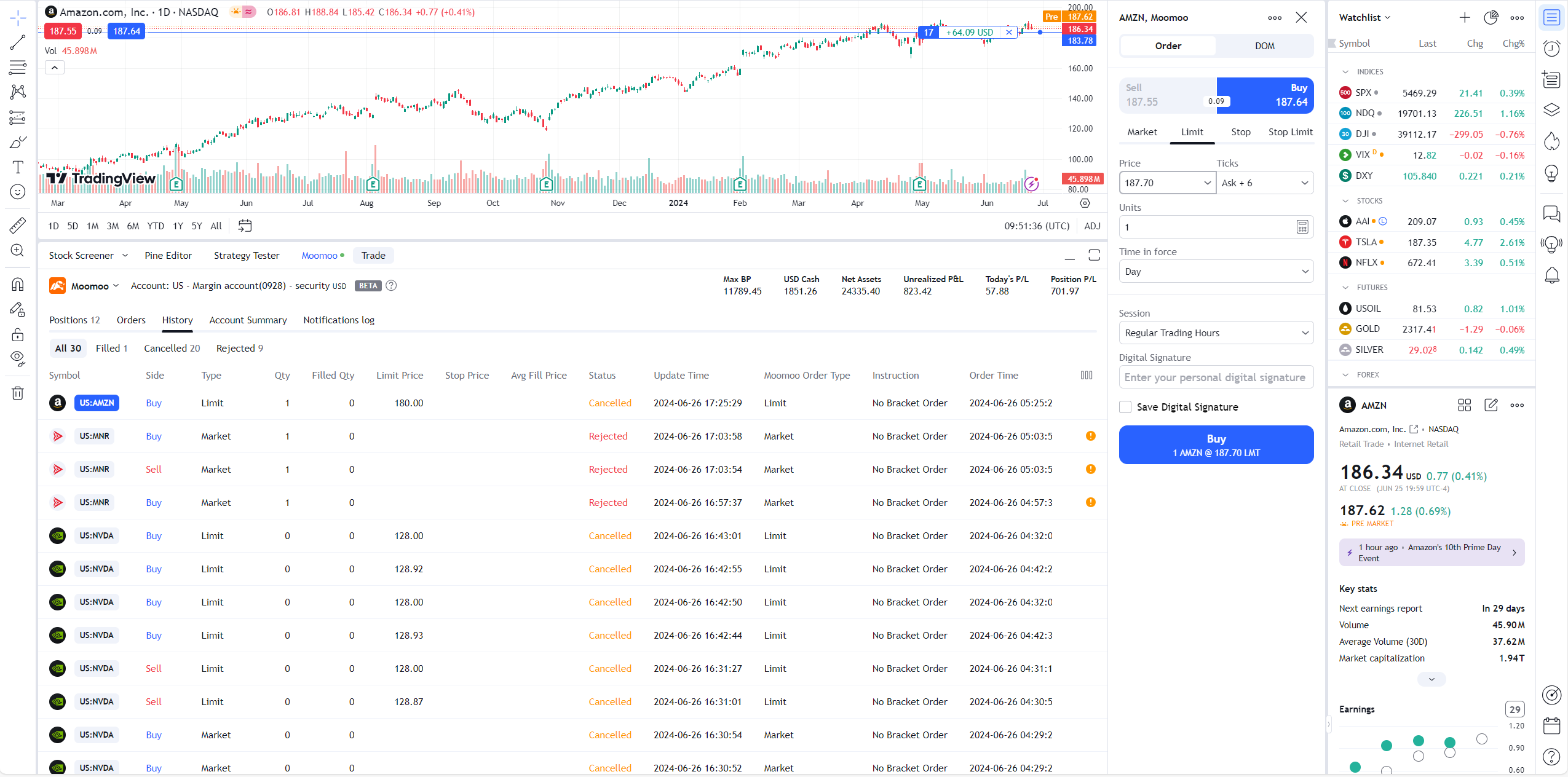
By connecting your Moomoo SG Universal account to TradingView, you will access the following features:
Charts: Present visualizations of price movements and trends.
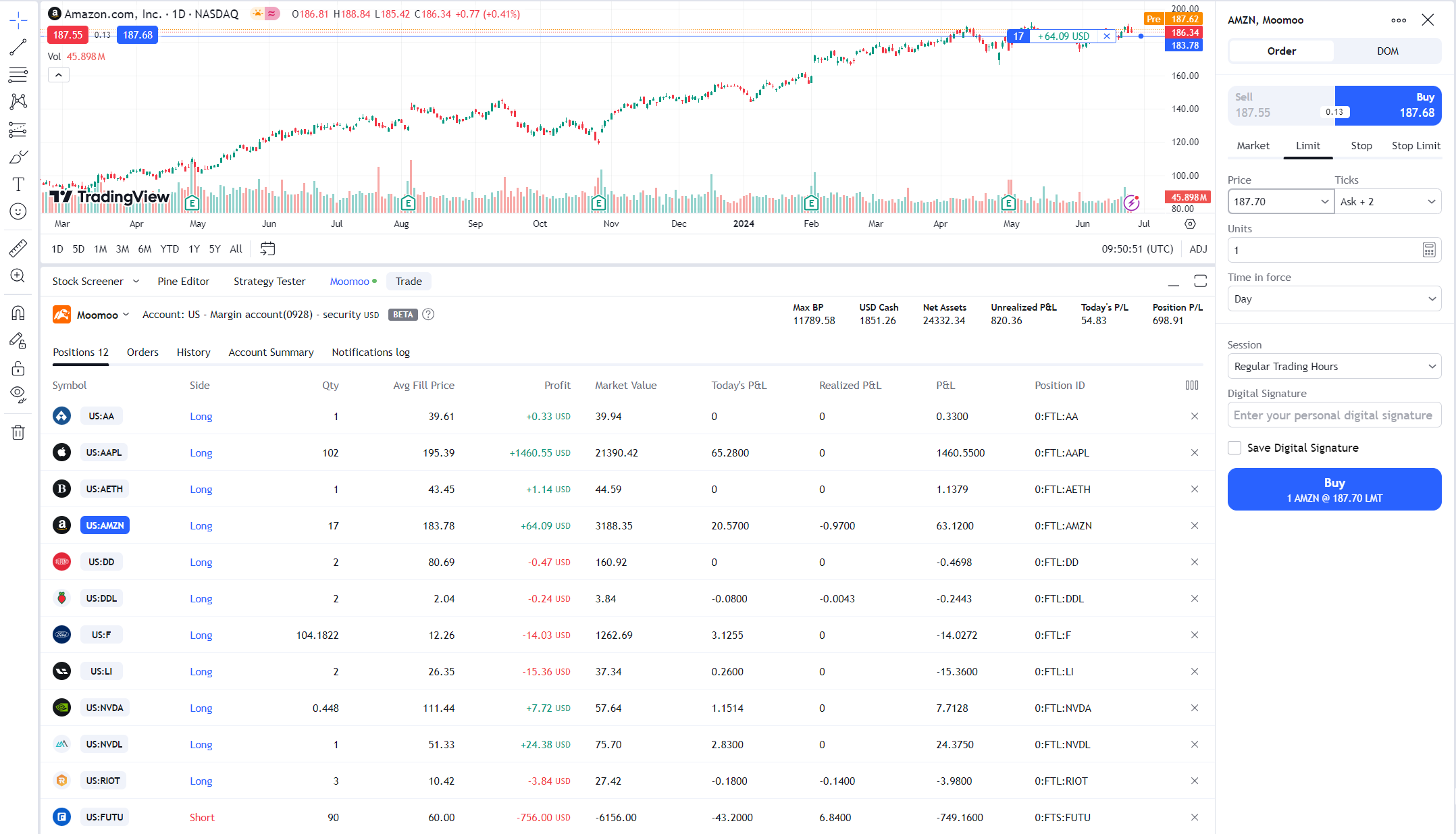
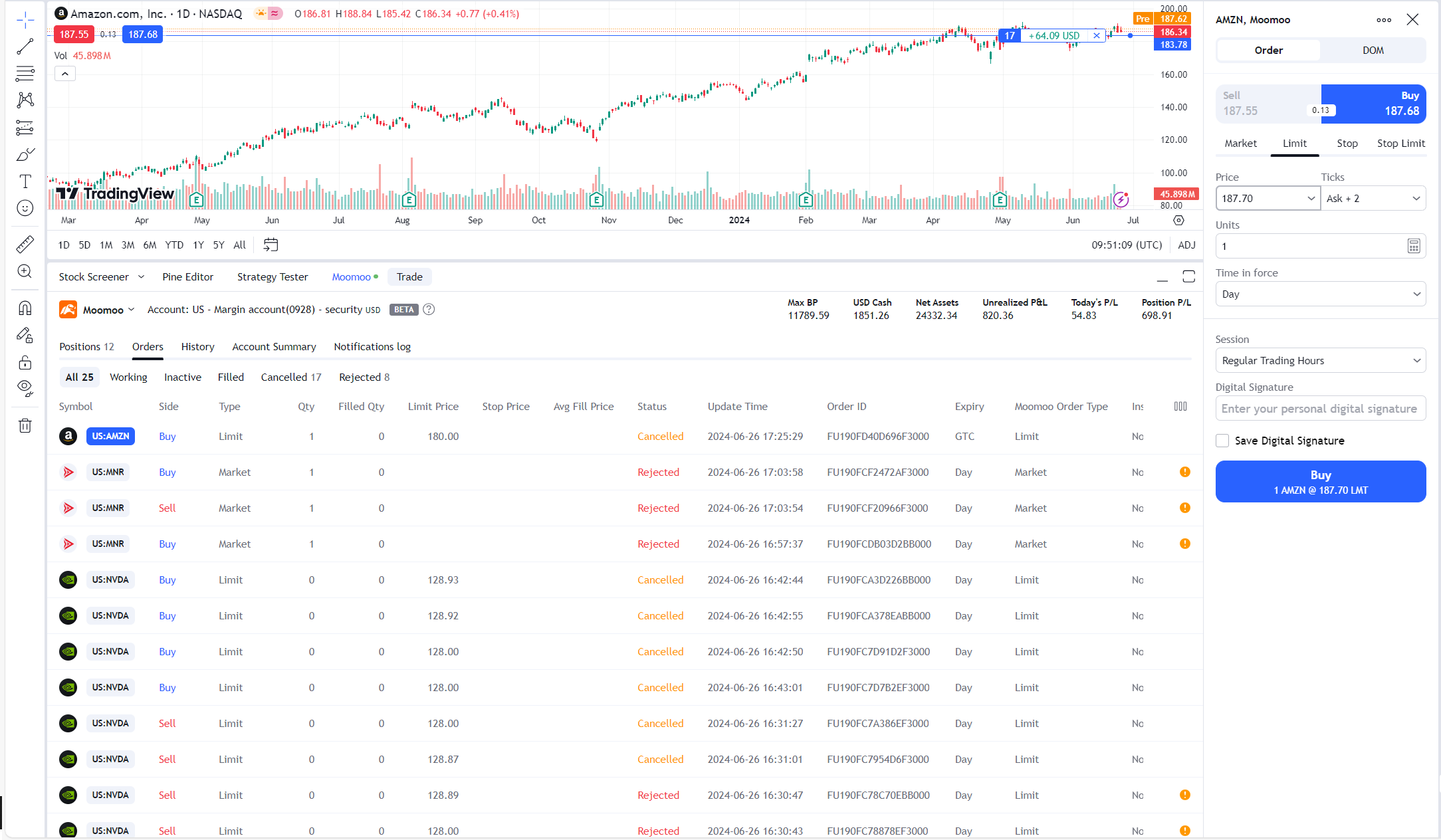
Trading Panel: Place orders, manage positions, and view order history.
Toolbar: Conduct chart analysis using customized drawing tools, indicators, and chart types.
Watchlist: Quickly get real-time quotes of the assets you follow.
4.How to place orders on TradingView
Once you have connected your Moomoo SG Universal account:
-
Enter the symbol you'd like to trade
-
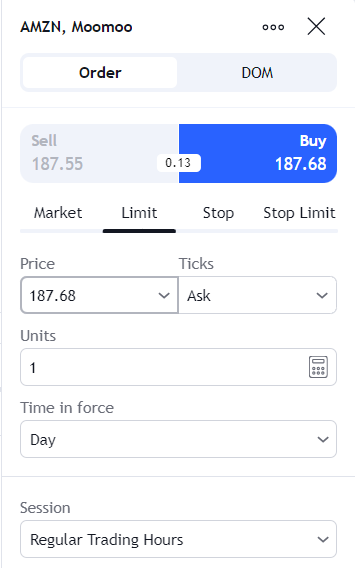
Click Trading Panel
-
Set up the order type, quantity, and other parameters
-
Click Buy or Sell to confirm the order
Notes:
-
We currently only support trading
US stocks, US stock options on TradingView.
-
TradingView provides a feature called Instant Order Placement. Once enabled with a saved trading password, orders with valid parameters will be submitted immediately without confirmation. We advise you to use this feature with caution.
-
Order descriptions and concepts on the TradingView platform may differ from those on moomoo. If you view your order history on TradingView after placing orders on moomoo, please refer to the order descriptions on moomoo. Additionally, TradingView may not support displaying, editing, or canceling orders placed on moomoo.
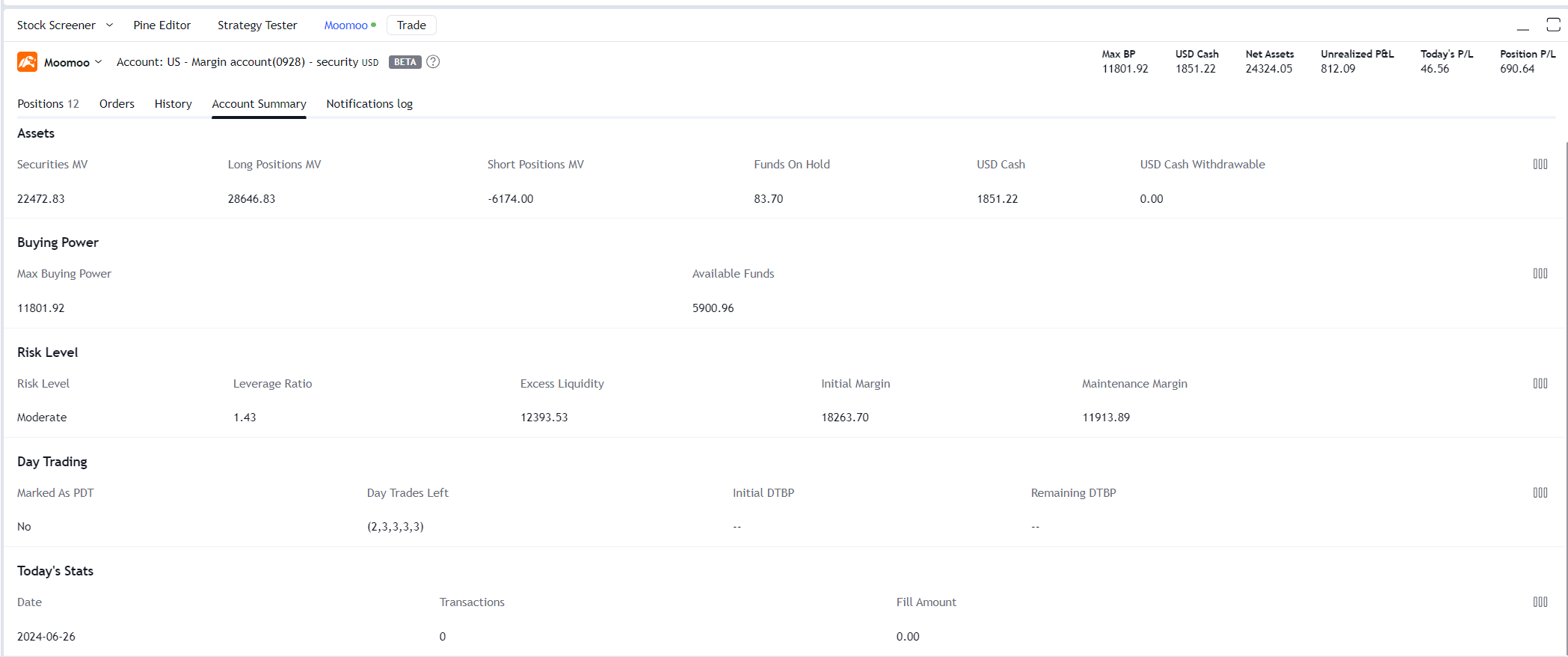
5.How to manage position and account on TradingView
To monitor and manage your open positions in your moomoo account through TradingView, use the following tabs:
The Positions tab: Your current holdings are shown here.
6.Moomoo SG Universal account security
For your account security, we advise you to update your Moomoo SG login password and trading password regularly. You may log out of your Moomoo SG Universal account from the TradingView platform at any time.
7.Deposit and withdrawal
If you'd like to make deposits or withdrawals, please visit the links below, or go to the moomoo mobile app.
Currently, you cannot make a deposit or withdrawal directly through TradingView.
8.Risk disclosures
Please read the risk disclosures below before you start trading on TradingView.
Over The Counter (OTC) Stocks
Trading OTC stocks carries high risks. To trade OTC stocks, please acknowledge and complete the following form:
ETF
Investing in ETFs involves risk. To trade ETFs, please acknowledge and complete the following form:
Penny Stocks